> ## Documentation Index
> Fetch the complete documentation index at: https://ubicloud.com/docs/llms.txt
> Use this file to discover all available pages before exploring further.
# Quickstart
In this guide you'll capture a machine image from an existing VM, publish it as the latest version, and boot a new VM from it using the [Ubicloud console](https://console.ubicloud.com).
The same actions are available in the [Ubicloud CLI](/docs/quick-start/cli) under `ubi mi`.
### Creating a new Machine Image
Create a VM with a disk of up to 40 GiB, and customize it into your "golden" template: install packages, configure, etc.
After you are done preparing, stop it. A machine image can only be captured from a **stopped** VM.
To stop a VM:
1. Select "Compute" from the navigation bar.
2. Click on your VM's name.
3. Go to the "Settings" tab.
4. Click "Stop".
Before capturing the image, consider [generalizing the source VM](/docs/machine-images/generalize) to remove state that should be unique to each VM. Then stop the VM to ensure its disk is in a consistent state.
Generalizing the VM is optional.
In the console, select "Machine Images" from the left menu. Click "Create Machine Image".
Select a stopped VM. Click "Create".
The version label defaults to a UTC timestamp. You can override it by filling in the "Version Label" field in the create form.
Optionally, you can select "Destroy source VM after capture" to automatically destroy
the source VM after the capture is done.
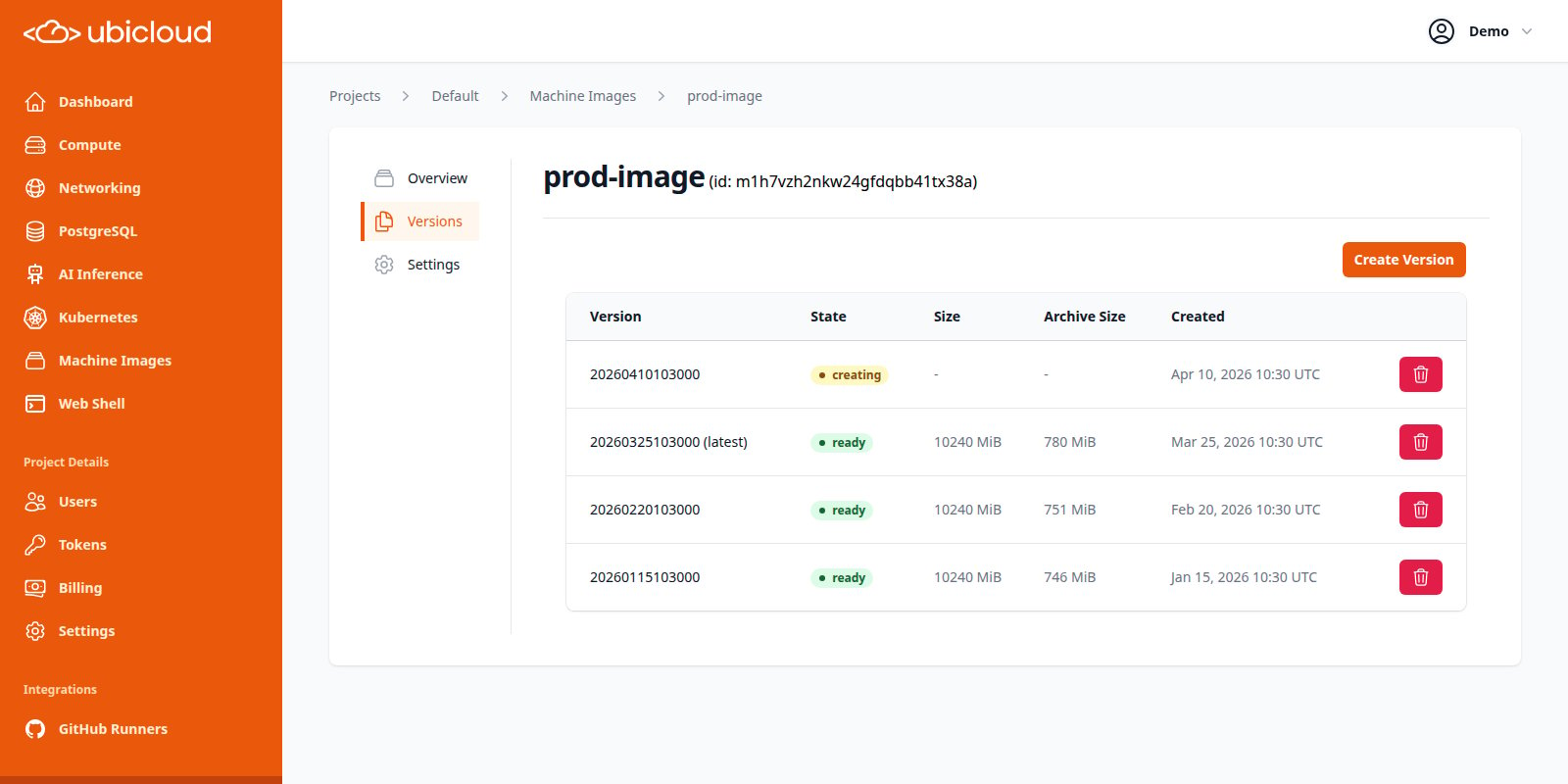
After the previous stage, you will be redirected to the "Versions" tab of the machine image.
After a few minutes, the new version will reach the "ready" state.
Once the version is ready, it is automatically designated as the latest version.
### Boot a VM from the image
After the version you just created reaches the "ready" state, you can boot VMs from it.
In the "Create Virtual Machine" form, a "Machine Image" option appears in the Boot Image selector. Choose it, then pick one of your images to boot a VM from its latest version.
The web console currently supports booting only from the latest version. To boot from a specific version, use the CLI.
### Manage versions
You can create new versions or delete old versions from the "Versions" tab of the machine image.
 ### Change the latest version
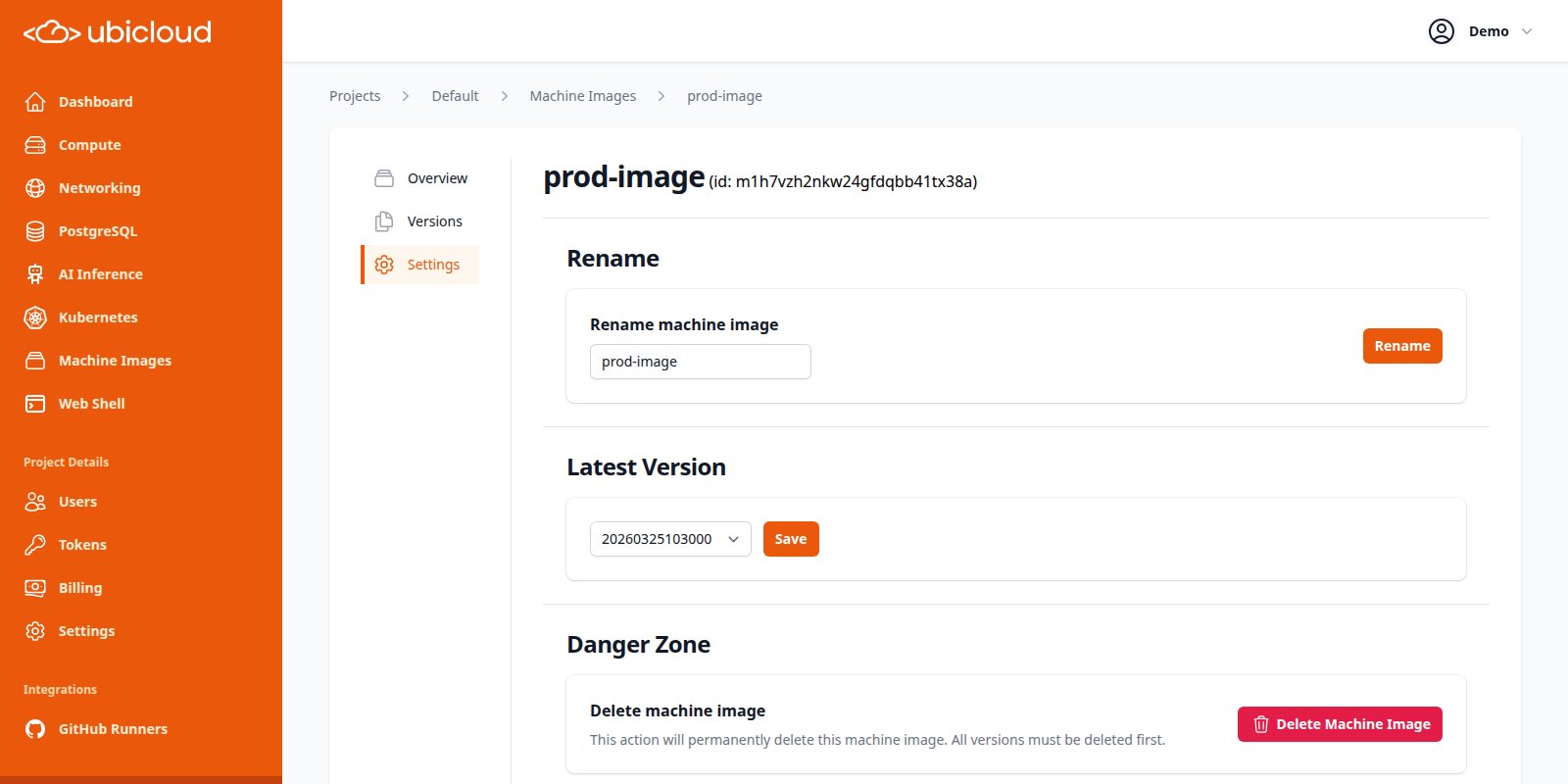
To designate a different version as the latest, open the image's **Settings** page, select the desired version, and click **Save**.
This can also be used to roll back to an older version.
### Change the latest version
To designate a different version as the latest, open the image's **Settings** page, select the desired version, and click **Save**.
This can also be used to roll back to an older version.
 ### Clean up
Destroy versions you no longer need. A machine image can only be destroyed after all of its versions have been destroyed.
### Clean up
Destroy versions you no longer need. A machine image can only be destroyed after all of its versions have been destroyed.